Rooms Just Got a Lot Smarter
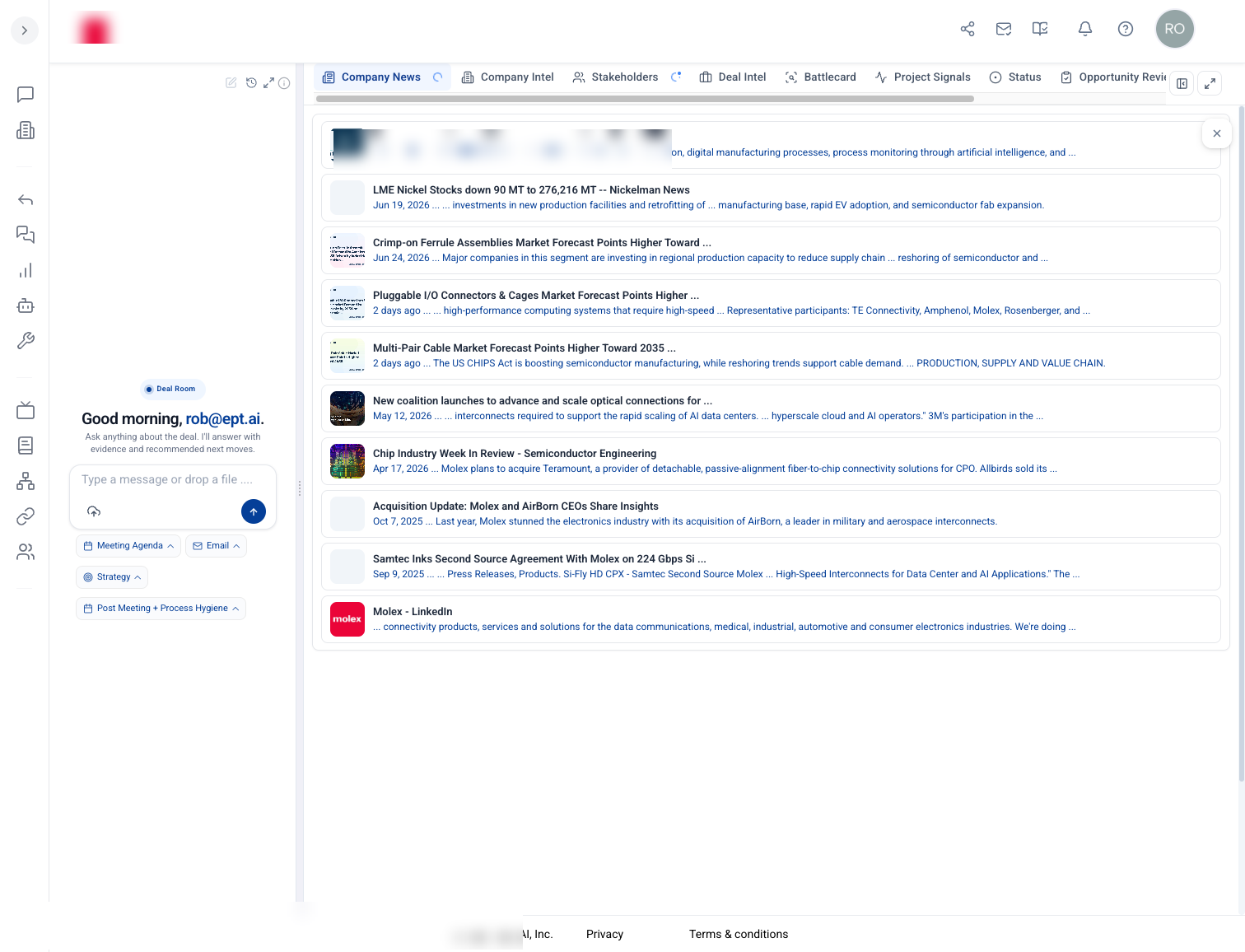
Rooms now cover more than deals — Customer, Person, and Application Rooms work together so you and your team can collaborate on the full enterprise sales motion.
Why it matters
A full room family
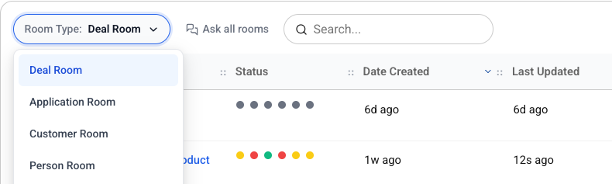
You know the Deal Rooms for accelerating deals. Now get to know the Customer Room (360-degree view of the customer), Person Room (go deep on stakeholders), and Application Room (prospect new customers and understand market directions).
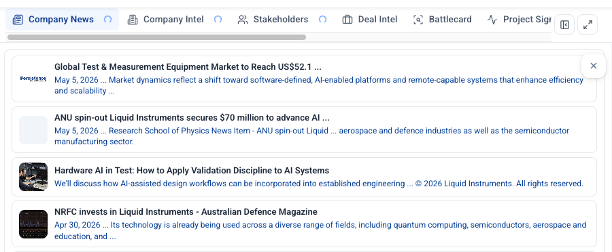
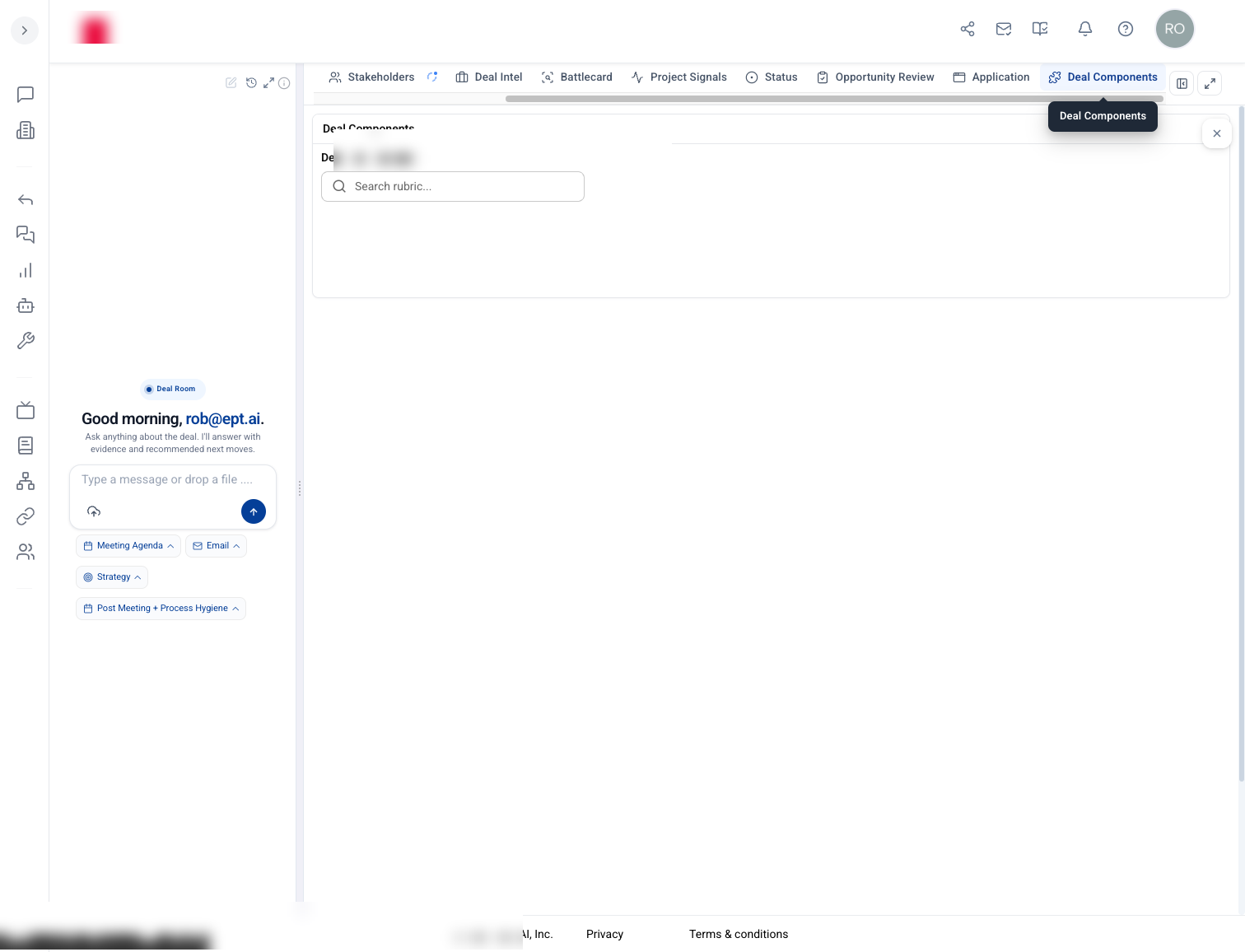
Icon tab navigation
Each room section is a tab with an icon for quick recognition. View full tab names when you need more context.
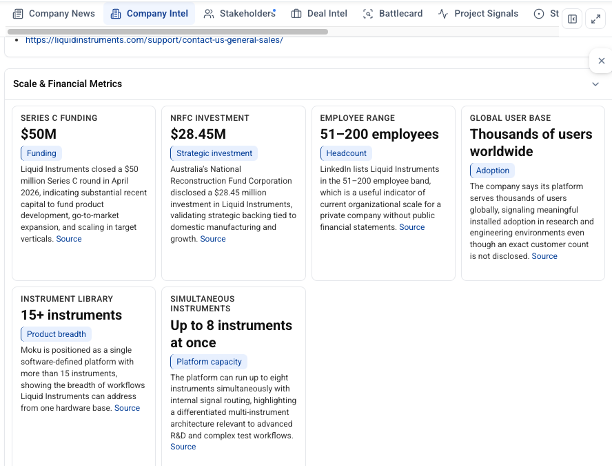
Higher-density overview
Deal and room content is laid out more compactly so you can see more items on screen without scrolling.
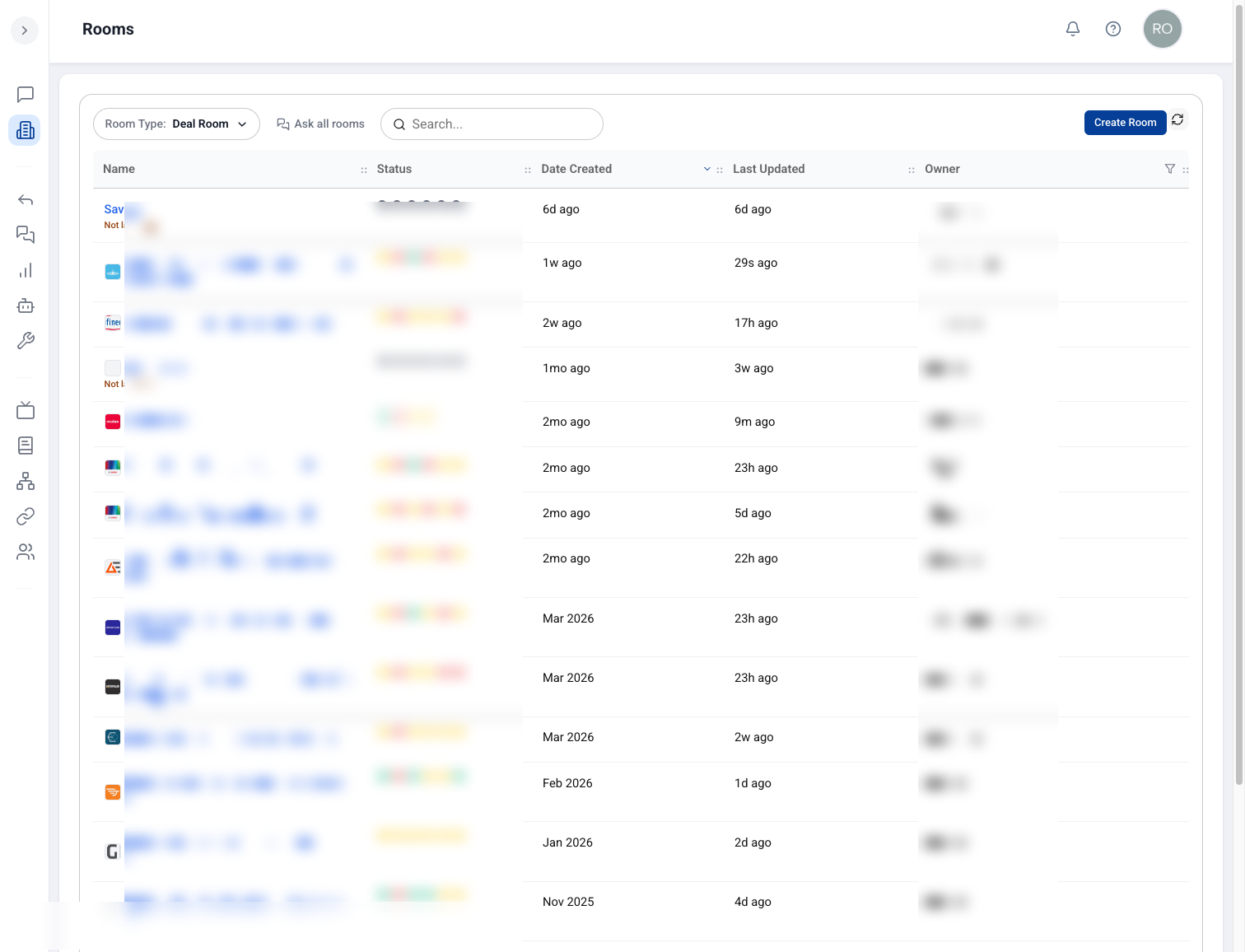
Faster room list
The Rooms list loads faster and shows related-room shortcuts so you can hop between a company, its people, and open deals.
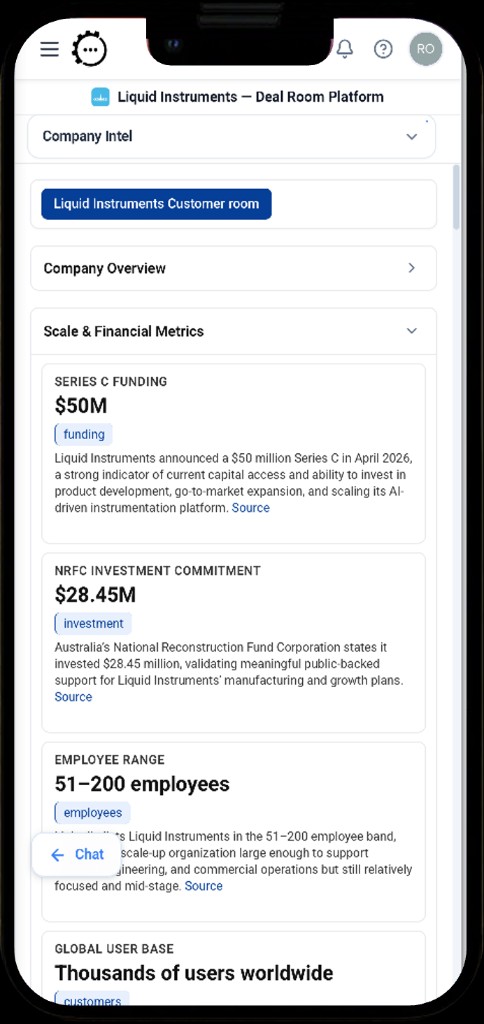
Mobile-friendly
Rooms work on phone and tablet with drag-and-drop, landscape mode, and touch-friendly layouts.
Automatic connections
Link a Salesforce or HubSpot record and related people, companies, and deal components get created and connected for you.
Room types at a glance
Navigation tips
- Icon tabs — Each section in a room has its own icon. Switch tabs to move between News Feed, Account Intel, Stakeholders, Product Lens, and more.
- Full tab names — Hover or expand the tab bar when you want to see the full label behind an icon.
- At-a-glance scanning — The denser layout fits more items on screen, so you can triage news and activity faster before diving into details.
How to use it
- Open Rooms from App Channels in the ept AI app.
- Inside a room, use the icon tabs across the top to switch between sections like News Feed, Account Intel, Stakeholders, and Resources.
- Hover a tab or expand the navigation to see the full tab name if the icon alone is not enough.
- Scan the denser main panel to get an overview quickly — more items fit on screen at once.
- Use related-room shortcuts on the room list to move between a customer, its people, and its deals.
- Connect your CRM record when prompted; related entities will link automatically through the shared data layer.