Daily briefing and weekly digest emails
The ept AI daily briefing email and weekly deal digest email: what each contains, who gets them, when they arrive, and how to turn them on or off under Profile → Notifications.
Daily briefing and weekly digest emails
ept AI can send you two summary emails. They are separate emails, so on a Monday you can get both.
| Subject line | When | Default | |
|---|---|---|---|
| Daily briefing | Your ept AI briefing — <date> | Weekday mornings, in the 7 AM hour (your time) | Off. Needs a connected Outlook. You turn it on. |
| Weekly deal digest (the Monday roundup) | Deal Room Dispatch for the week of <date> | Monday, about 5 AM (your time) | On for users who have deal rooms |
You control both on Profile → Notifications.
Daily briefing
A short email that prepares you for your day. It has two sections. You can include one or both.
Meeting briefing
Your meetings for the next 7 days, grouped under Today, Tomorrow and Later this week, with what to talk about in each meeting.
ept AI takes the meetings from your connected Outlook calendar. It keeps a meeting when:
- the meeting is linked to one of your rooms (a customer, deal or application), or
- at least one attendee is from outside your company.
Large internal invites with more than 12 attendees that are not linked to a room are left out. If you have no meetings that match, the section says No upcoming meetings in this window.
Deal actions
Short notes on deals that changed and what to do next, for up to 5 of your deals (up to 10 if you choose Weekly on Sunday). ept AI picks the deals from:
- open suggestions in your rooms
- changes in the room over the past week
- your email from the past 7 days
- news and calendar activity for the account
Where an action is to send an email, the briefing includes a draft that opens in your mail app, written in your own style.
Who can get it
The daily briefing uses your Outlook calendar and email, so you must connect your Outlook first. The Briefing preferences panel appears on the Notifications tab only after Outlook is connected.
If your Outlook connection is paused or needs you to sign in again, the briefing stops until you reconnect.
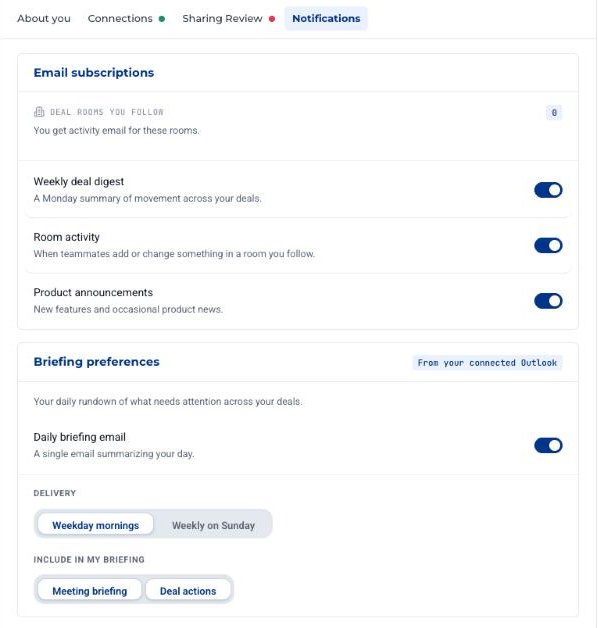
Turn the daily briefing on or off
- Click your name at the bottom left and open Profile.
- Open the Notifications tab.
- Under Briefing preferences, switch Daily briefing email on or off.
- When it is on, choose:
- Delivery: Weekday mornings (Monday to Friday) or Weekly on Sunday.
- Include in my briefing: Meeting briefing, Deal actions, or both.
Changes save at once. Your time zone is taken from your browser when you save, so the email arrives in the morning where you are.
You can also click Manage briefing preferences at the bottom of any briefing email to go to the same page.
Weekly deal digest
A longer Monday email that sums up what happened across your deals in the last full week (Monday to Sunday).
What it contains
- Up to 40 of your most relevant deal rooms that changed during the week. Rooms with open suggestions are always included.
- For each room: Deal changes and Activities (7 days).
- At the end, a list of your other rooms with no significant changes.
The rooms come from your most relevant rooms (the same ranking as your Rooms list) and the rooms you pinned. If none of your rooms changed during the week, the digest is not sent.
Who gets it
Every user who has signed in to ept AI at least once and has relevant or pinned deal rooms, unless they turned it off. It does not need Outlook.
Turn the weekly digest on or off
- Open Profile → Notifications.
- Under Email subscriptions, switch Weekly deal digest on or off.
You can also click Unsubscribe at the bottom of any weekly digest email.
Common questions
Why am I getting two emails? The daily briefing and the weekly deal digest are different emails. The daily briefing prepares you for today's meetings and deal actions. The weekly digest, on Mondays, sums up the past week across your deals. On a Monday you get the digest at about 5 AM and the briefing in the 7 AM hour. To get only one, turn the other off in Profile → Notifications.
How do I turn off the daily briefing? Open Profile → Notifications and switch off Daily briefing email under Briefing preferences. Or click Manage briefing preferences at the bottom of the email.
How do I stop the Monday email? Open Profile → Notifications and switch off Weekly deal digest. Or click Unsubscribe in the email.
I don't see Briefing preferences. The panel appears only after you connect Outlook. See Outlook for users. If you cannot connect Outlook, ask your admin to set up the Outlook integration for your account.
Can I choose the time? No. The daily briefing arrives in the 7 AM hour and the weekly digest at about 5 AM on Monday, in your time zone. If ept AI does not know your time zone yet, open the Notifications tab and save your briefing preferences once.
Does the briefing share my email with anyone? No. The briefing is sent only to you. Your email and meetings stay private to you unless you share them to a room. See Outlook for users.