Outlook (admins)
Admin guide: approve the ept AI Outlook app in Microsoft Entra and turn on Outlook email and calendar for your ept AI account.
Outlook (admins)

The Outlook integration lets people in your ept AI account connect their own Microsoft 365 mailbox and calendar. ept AI then:
- prepares them for upcoming customer meetings (meeting prep and the daily briefing)
- suggests which emails and meetings belong in which customer, deal or application room
- adds an item to a room only when its owner approves it
Access is read-only. ept AI cannot send, edit, move or delete email or calendar events.
Back to Integrations Overview · Users: Connect your Outlook · Security teams: Outlook security overview
How it works
There are two steps, by two different people:
- An admin turns on Outlook for the account, once. A Microsoft 365 admin approves the ept AI Outlook app for your tenant (admin consent). This does not read any mailbox.
- Each user connects their own mailbox. Users sign in to Microsoft as themselves. ept AI reads only the mailboxes of users who connect.
Nothing is shared by default. Every email and meeting stays private to its owner until the owner approves it for a room in Sharing Review, by hand or with their own rules.
Before you begin
- An ept AI user with the Admin role in your account.
- A Microsoft Entra user who can grant tenant-wide admin consent (for example Global Administrator, Privileged Role Administrator or Cloud Application Administrator, depending on your tenant policy). This can be the same person.
- Optional: your security team's review. Send them the Outlook security overview.
Microsoft permissions you approve
All permissions are delegated. They act only for a user who signs in, and only on that user's own mailbox. The Outlook app has no application (app-only) permissions.
| Permission | Purpose |
|---|---|
openid, profile, email | Sign-in |
offline_access | Keep the connection without asking the user to sign in each hour |
User.Read | Identify the signed-in user |
Mail.Read | Read the user's mail |
Calendars.Read | Read the user's calendar |
ept AI does not request Mail.Send, Mail.ReadWrite, Calendars.ReadWrite or any tenant-wide mail permission.
Step 1: Start the Outlook integration in ept AI
- Sign in to ept AI as an admin.
- Open Integrations, then the Browse catalog tab.
- Select Outlook (Microsoft 365 email and calendar, private by default).
- Click Connect. ept AI sends you to Microsoft to approve access.
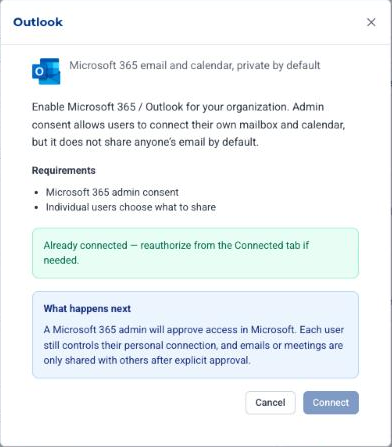
If Outlook is already set up for your account, the window says Already connected — reauthorize from the Connected tab if needed.
Step 2: Approve the app in Microsoft
- Sign in to Microsoft with an account that can grant admin consent.
- Review the permissions listed above and click Accept.
- Microsoft sends you back to ept AI. Outlook now shows on the Connected tab of Integrations.
If the person who starts the connection in ept AI cannot grant consent, ask your Entra admin to complete this step. You can repeat Step 1 later.
Step 3: Tell your users
After the account integration is active, users see:
- a Connect Outlook banner on the AI Chat home page
- a Microsoft 365 / Outlook card under Profile → Connections
Send them the Outlook for users guide. As an admin, you also connect your own mailbox from Profile → Connections. Approving the app for the tenant does not connect your mailbox or anyone else's.
Control who can connect
You manage this in Microsoft Entra, not in ept AI:
- Limit users. In Entra, open the ept AI Outlook enterprise application, set Assignment required to Yes, and assign the users or groups who may connect.
- Conditional Access. Apply your normal Conditional Access policies to the ept AI Outlook app.
- Stop access. Revoke the app's consent, remove a user's assignment, or disable the user in Entra. ept AI can no longer get new tokens, and access ends when the current token expires, usually within about an hour.
When someone leaves your company, disable them in Entra. To delete their ept AI data as well, contact ept AI support.
Privacy summary
- Read-only. ept AI cannot send, change or delete mail or calendar events.
- Per-user opt-in. Only mailboxes whose owners connect are read.
- Private by default. Unshared email and meetings are visible only to their owner. Other users, including admins, cannot see them.
- Shared only on approval. An item reaches a room only when its owner approves it, by hand or with their own rule.
- Newsletters and bulk mail are filtered out before anything is stored.
- Not used for training. See the Outlook security overview for data storage, AI processing, retention and deletion.
Troubleshooting
| Symptom | What to check |
|---|---|
| Users see "Ask your administrator to enable the email integration" | Outlook is not active for the account yet. Complete Steps 1 and 2. |
| Microsoft says the app needs admin approval | Tenant admin consent is not complete. An Entra admin must approve the app (Step 2). |
| A user cannot connect, but others can | The app may require assignment in Entra. Assign the user, or check Conditional Access. |
| No Outlook in the catalog, or you cannot start the connection | You need the Admin role in ept AI. Contact ept AI support if it is still missing. |
Related
- Outlook for users
- Outlook security overview
- Daily briefing and weekly digest emails
- Microsoft Teams (admins) — separate Microsoft 365 integration
- Microsoft Entra ID SSO — sign-in only, not mailbox access