Outlook (users)
How to connect your Outlook email and calendar to ept AI, review items in Sharing Review before they reach a room, set automatic approve and reject rules, and disconnect.
Outlook (users)

Connect your Outlook email and calendar so ept AI can prepare you for customer meetings and keep your rooms up to date with what customers tell you. Access is read-only. ept AI never sends, changes or deletes your email or calendar events.
Your email is private by default. Nothing goes into a shared room until you approve it.
Back to Integrations Overview · Admins: Turn on Outlook for your account · Security teams: Outlook security overview
What you get
- Meeting prep. Your upcoming customer meetings on the AI Chat home page, with what to talk about.
- Daily briefing email. An optional morning email with your meetings and deal actions. See Daily briefing and weekly digest emails.
- Email-aware answers. The AI can use your email as private context when it answers your questions.
- Your writing voice. The AI can draft emails in your own style.
- Up-to-date rooms. ept AI suggests which emails and meetings belong in which customer, deal or application room. You approve what goes in, and the room's reports use it.
Before you connect
- Your admin has turned on Outlook for your ept AI account. If you see Ask your administrator to enable the email integration, send them the admin guide.
- Use the same work Microsoft account you use for Outlook.
Connect Outlook
- In ept AI, click your name at the bottom left and open Profile.
- Open the Connections tab.
- On the Microsoft 365 / Outlook card, click Connect Outlook.
- Sign in to Microsoft and accept the read-only permissions.
- Microsoft sends you back to ept AI and you see Outlook connected successfully.
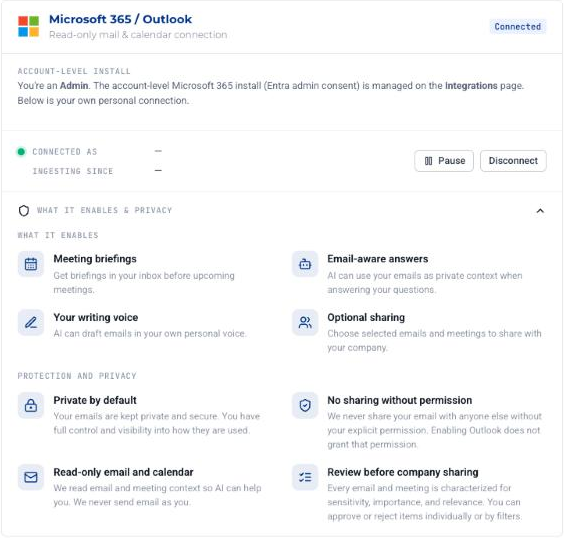
Expand What it enables & privacy on the card for a short summary of what Outlook adds and how your email is protected.
You can also click Connect Outlook on the banner at the top of the AI Chat home page, or from Sharing review in a deal room.
What happens next
- ept AI reads the last 60 days of your email and calendar, and calendar events for the next 180 days.
- Within about 10 minutes, the first items appear in Sharing Review.
- After that, new email (sent and received) and calendar changes arrive within minutes.
Before anything is stored, ept AI drops newsletters, bulk mail, auto-replies, no-reply senders and mail in your Focused Inbox Other folder.
Sharing Review
Every email and meeting that ept AI thinks belongs in one of your rooms waits in Sharing Review until you decide. Until then, only you can see it.
Where to find it
- Profile → Sharing Review shows all your items.
- In a deal room, the Sharing review button shows your items for that room.
What you see for each item
| Column | Meaning |
|---|---|
| Message | The email subject or meeting title |
| Destination room | The room ept AI suggests |
| Confidence | How sure ept AI is that the item belongs in that room |
| Importance | Critical, high, medium or low for that room |
| Sens. | Sensitivity: low, medium or high, with a short reason. HR, legal, immigration and personal content, and meetings Outlook marks private, are always high. |
| Date | When the email was sent or the meeting is |
| Status / action | Approve or reject |
Use the Unaddressed, Approved and Rejected tabs to switch between items. To narrow the list, search by subject, sender or room, or filter by Type, Sensitivity and Importance.
What the actions do
| Action | Result |
|---|---|
| Approve | Puts the item into the room. Room members and the room's reports get the whole email, including attachment text, not only the excerpt. |
| Reject | Keeps the item out of the room. It stays private to you. |
| Revoke (on an approved item) | Removes the item from the room again, with any room documents made from its attachments. |
Select several items and use Approve selected or Reject selected to decide in bulk.
Approve an email only into a room where every member may read it.
If several connected people received the same email, it is reviewed once. An approval by any recipient shares that message.
Automatic sharing rules
Rules approve or reject new and pending items for you. Open Profile → Sharing Review and expand Automatic sharing rules. Click Add rule to make a new one.
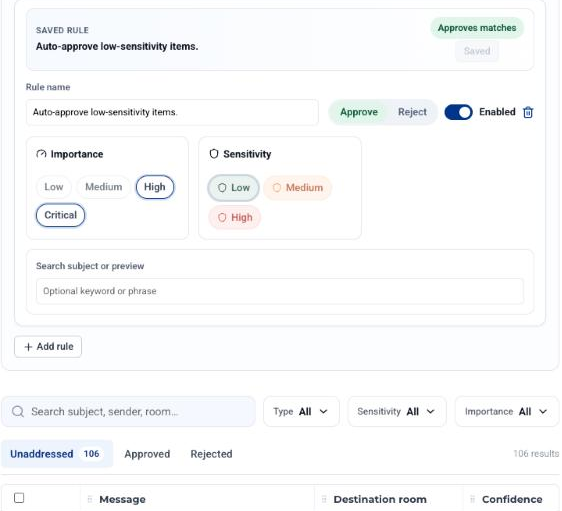
Each rule has:
- Rule name
- Action: Approve or Reject
- Importance: Critical, High, Medium, Low (any you select)
- Sensitivity: Low, Medium, High (any you select)
- Search subject or preview: optional text to match
- An on/off switch
All criteria you set must match. If an approve rule and a reject rule both match an item, reject wins. Rules act only on items that are still pending. They never change a decision you already made.
You have no rules until you add one. Two starter rules are offered as cards, and you can save each in one click:
| Starter card | Saved as | What it does |
|---|---|---|
| Approve safe high-value items | Auto-approve important low-sensitivity items | Approves items with critical or high importance and low sensitivity |
| Reject sensitive items | Auto-reject high-sensitivity items | Rejects every high-sensitivity email and meeting |
A sensible start is to save both and review the rest by hand.
Pause or disconnect
On Profile → Connections, on the Outlook card:
- Pause stops ept AI reading new email and calendar events. Resume starts it again.
- Disconnect removes the connection. Confirm with Disconnect Outlook.
When you disconnect:
- ept AI deletes your Microsoft token and stops reading your mailbox.
- Your Sharing Review queue is cleared.
- Content you already approved stays in its rooms. Revoke it first if you want it removed.
- The daily briefing stops until you connect again.
Privacy summary
- Read-only. ept AI never sends, changes or deletes email or calendar events.
- Only your own mailbox, and only after you connect it.
- Unshared items are visible only to you. Other users and admins cannot see them.
- Items reach a room only when you, or a rule you made, approve them.
- Not used to train AI models.
More detail: Outlook security overview.
Common questions
How do I connect Outlook? Open Profile → Connections and click Connect Outlook on the Microsoft 365 / Outlook card. Sign in to Microsoft and accept the read-only permissions.
What does ept AI do with my email? It reads email and calendar events from the last 60 days onward, skips newsletters and bulk mail, and keeps a private, encrypted copy that only you can see. An AI model suggests which room each item belongs in and how sensitive it is. Nothing goes into a room until you approve it. ept AI cannot send, change or delete your email.
Can my manager or admin read my email? No. Only you can see items you have not shared. People see an email only after you approve it into a room they are a member of.
Why don't I see Sharing Review? The tab appears after you connect Outlook.
Troubleshooting
| Symptom | What to try |
|---|---|
| Ask your administrator to enable the email integration | Outlook is not turned on for your account. Send your admin the admin guide. |
| Microsoft says the app needs admin approval | Your Microsoft admin must approve the ept AI Outlook app first (admin guide). |
| A Reconnect Outlook banner appears | Your Microsoft session expired. Click Reconnect Outlook and sign in again. |
| Sharing Review is still empty after connecting | Wait about 10 minutes. Items appear only for email and meetings that match one of your rooms. |
Related
- Outlook for admins
- Outlook security overview
- Daily briefing and weekly digest emails
- Microsoft Teams (users) — uses the same Sharing Review queue
- Deal Rooms